How to Add Demand and Booking Data
Maestrow stores Demand and Booking data in containers. Create a container for the correct period, then upload the file so the data can be processed and used in prompts.
Step 1: Create the container
Best practice
Name containers clearly so it is easy to identify which periods have been updated in the system.
Pro tip
Demand and Booking data are appended to the database. When using these datasets in a prompt, refer to them as Demand or Booking Data only—you do not need to reference a specific file.
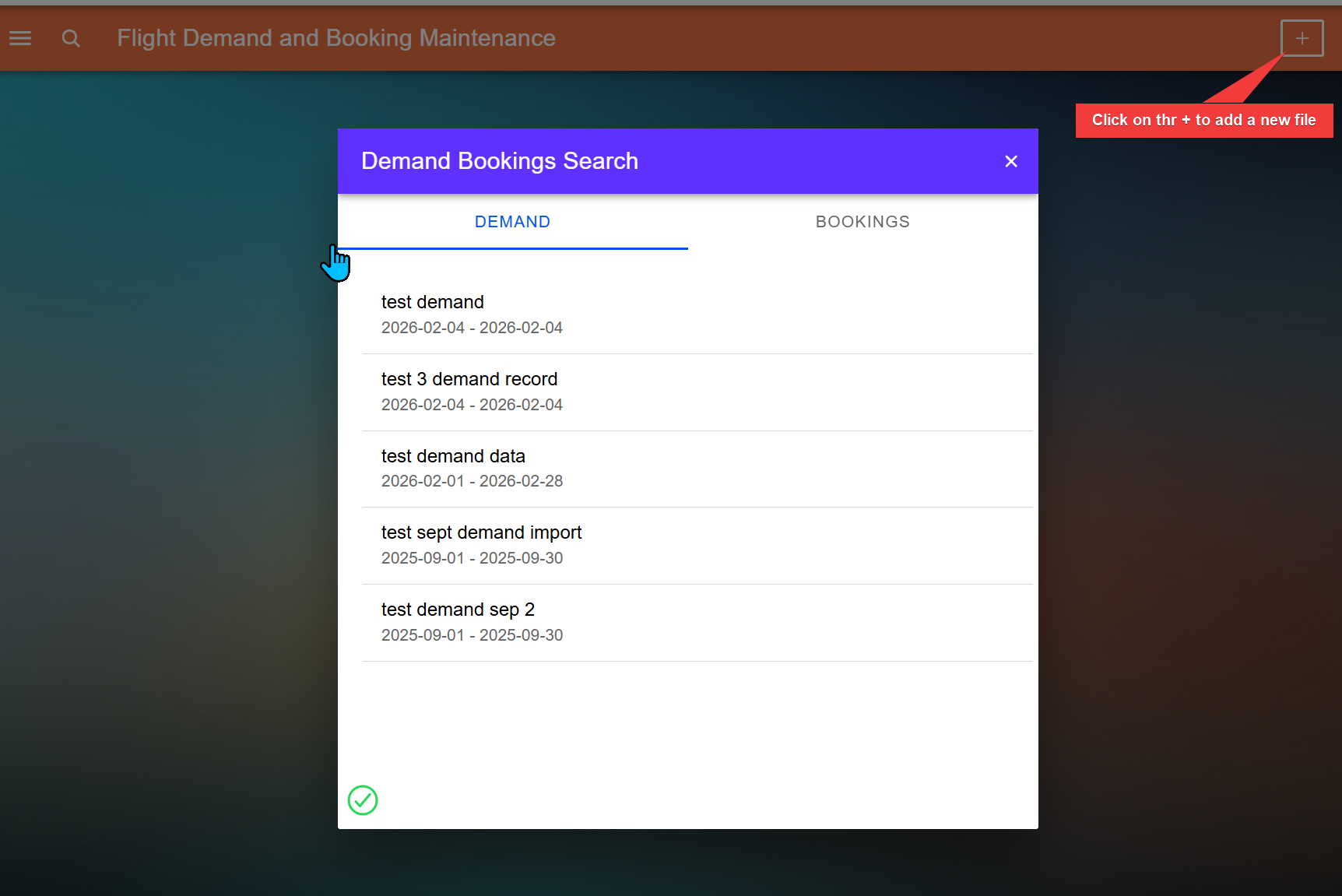
- Click the + button to add a new folder.
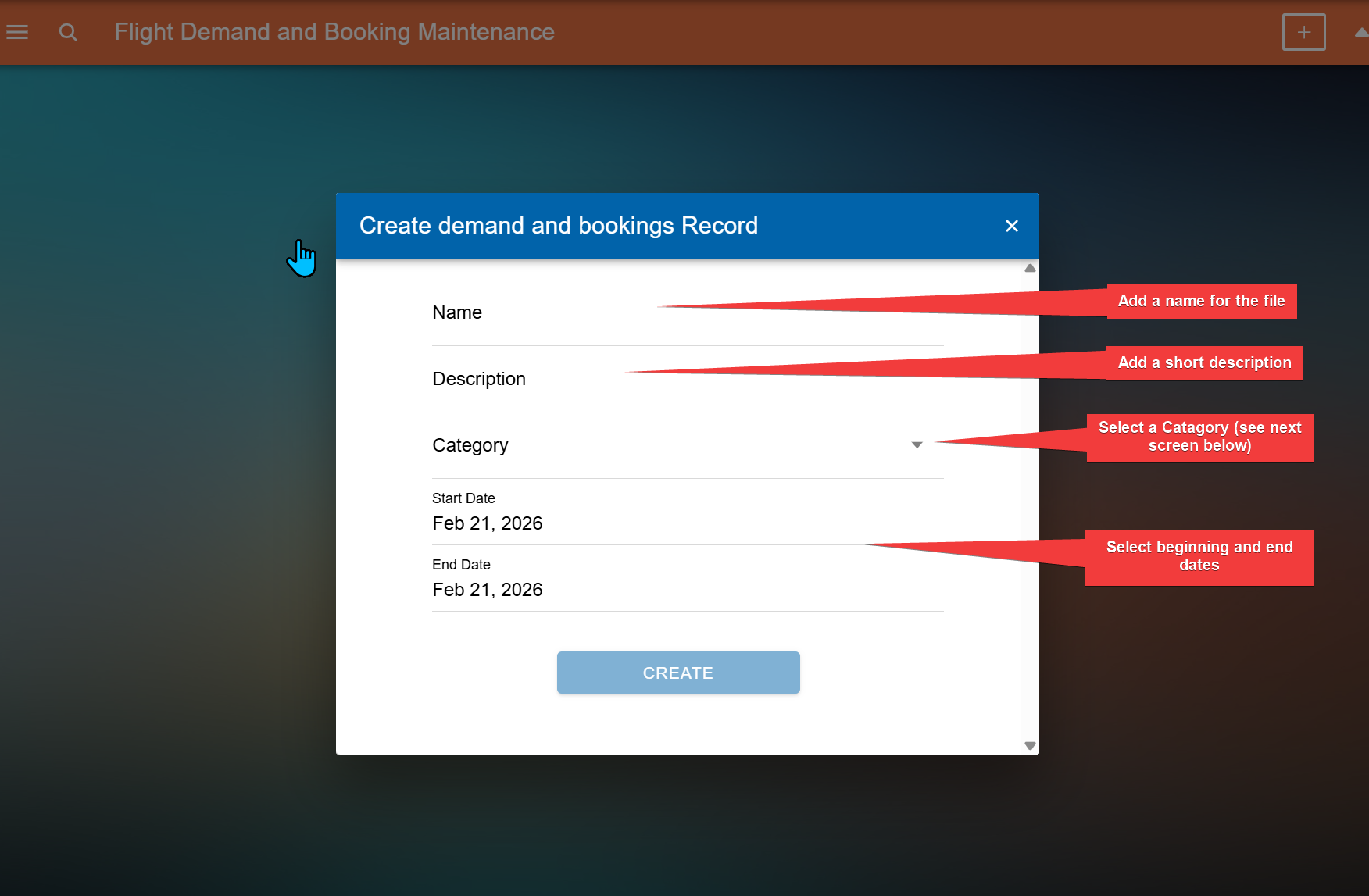
- Enter a name for the container.
- Add a short description.
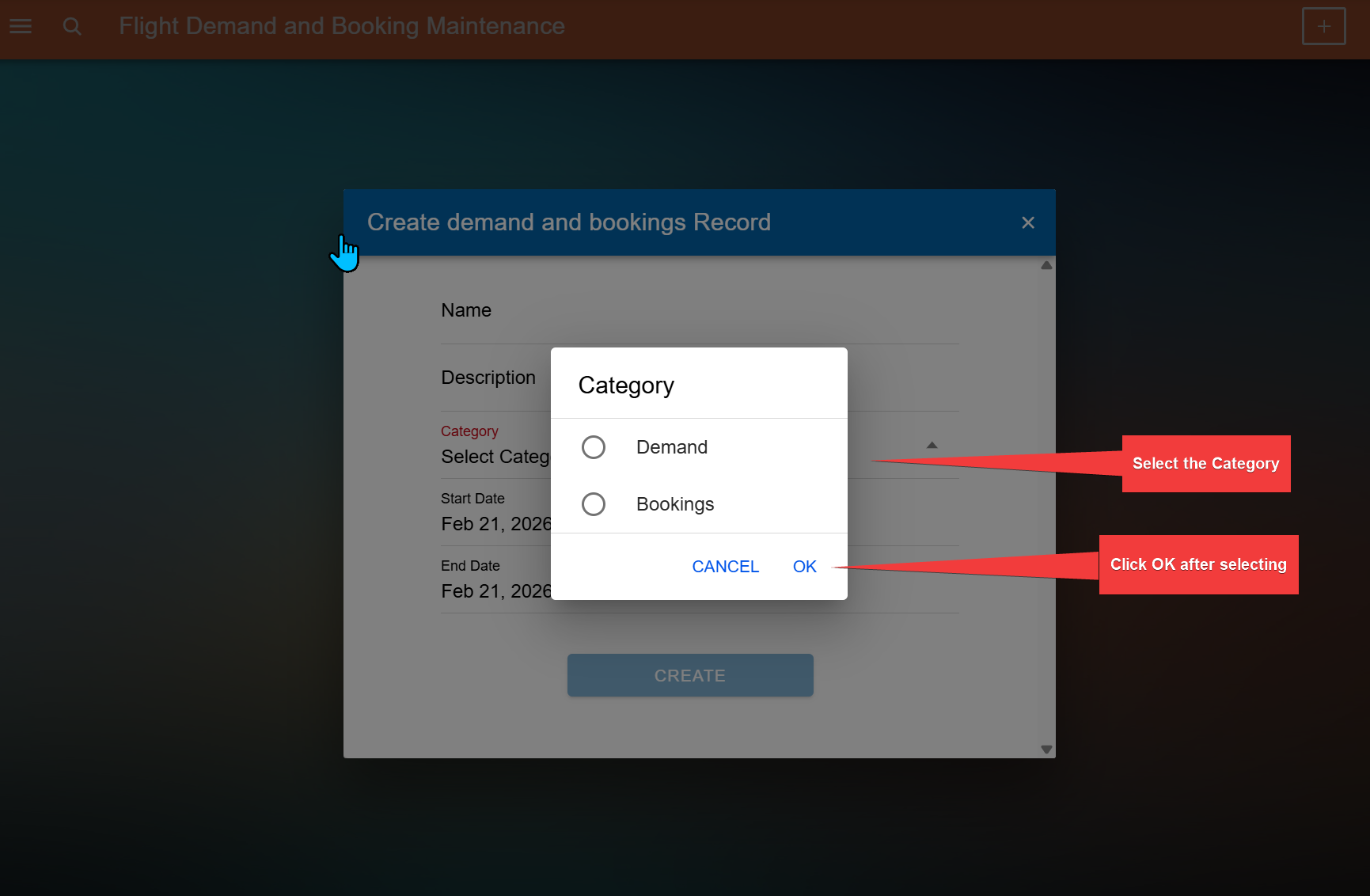
- Select a category.
- Set the start and end date.
Step 2: Upload data into the container
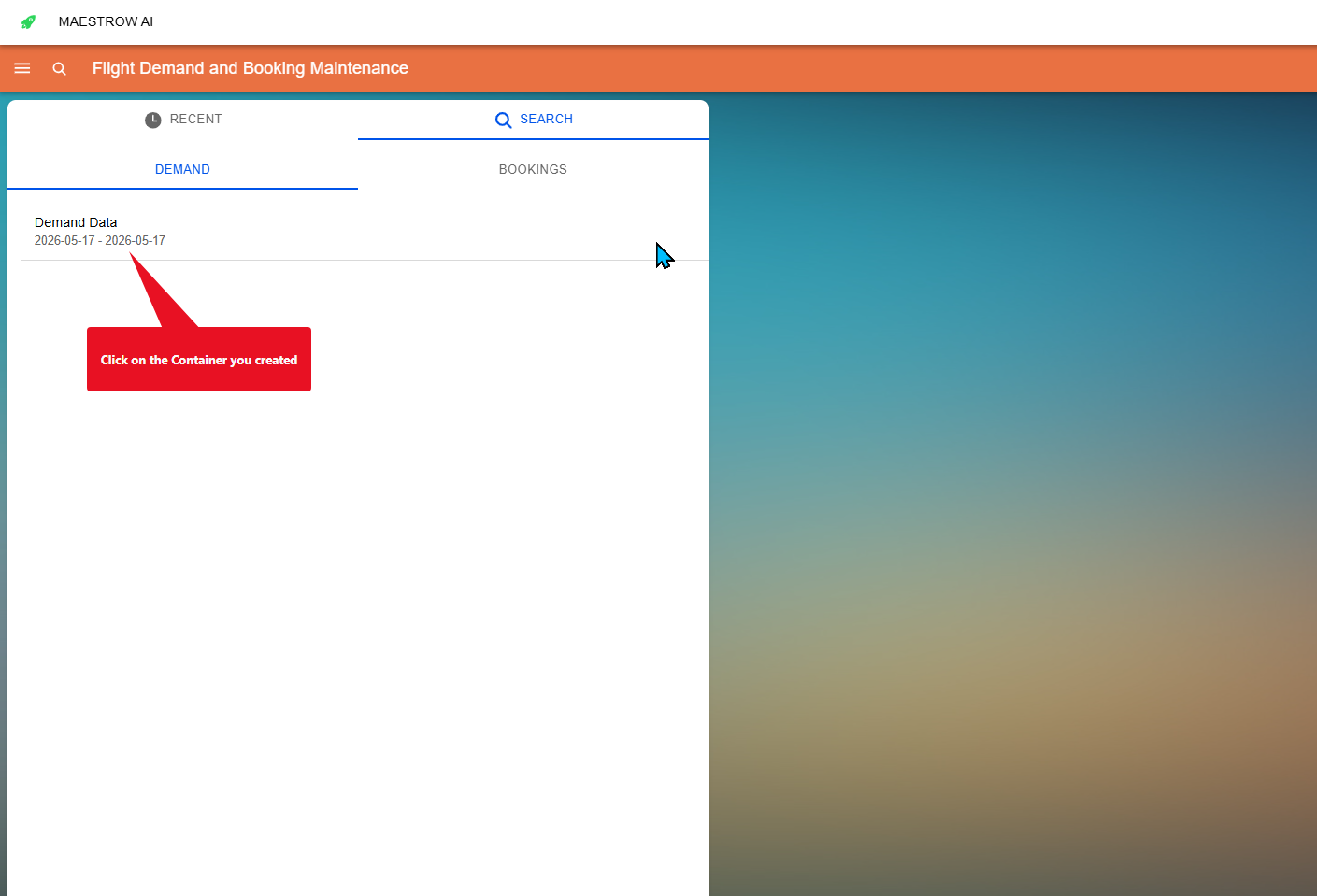
- Select the container you created.
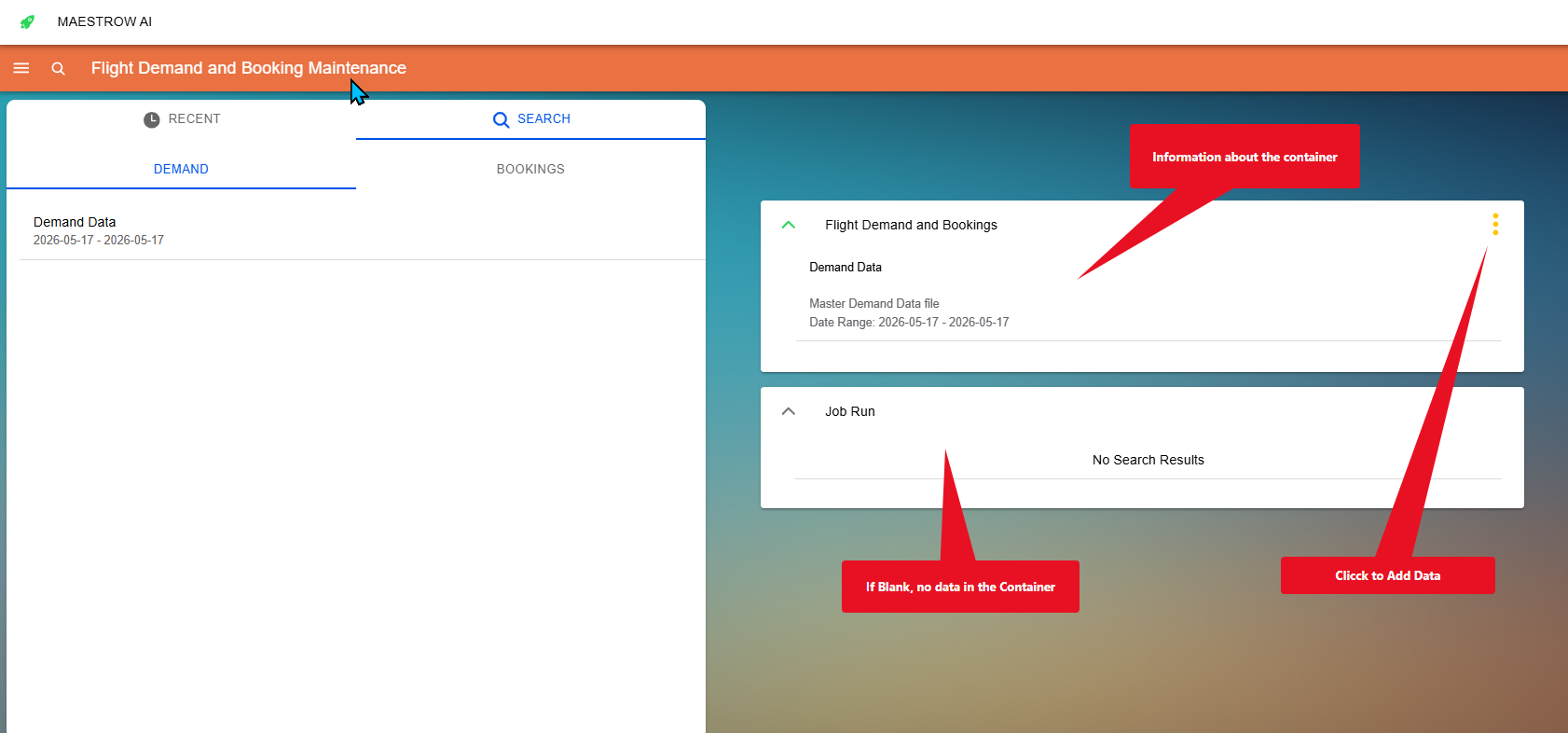
- Review the container details and verify the period.
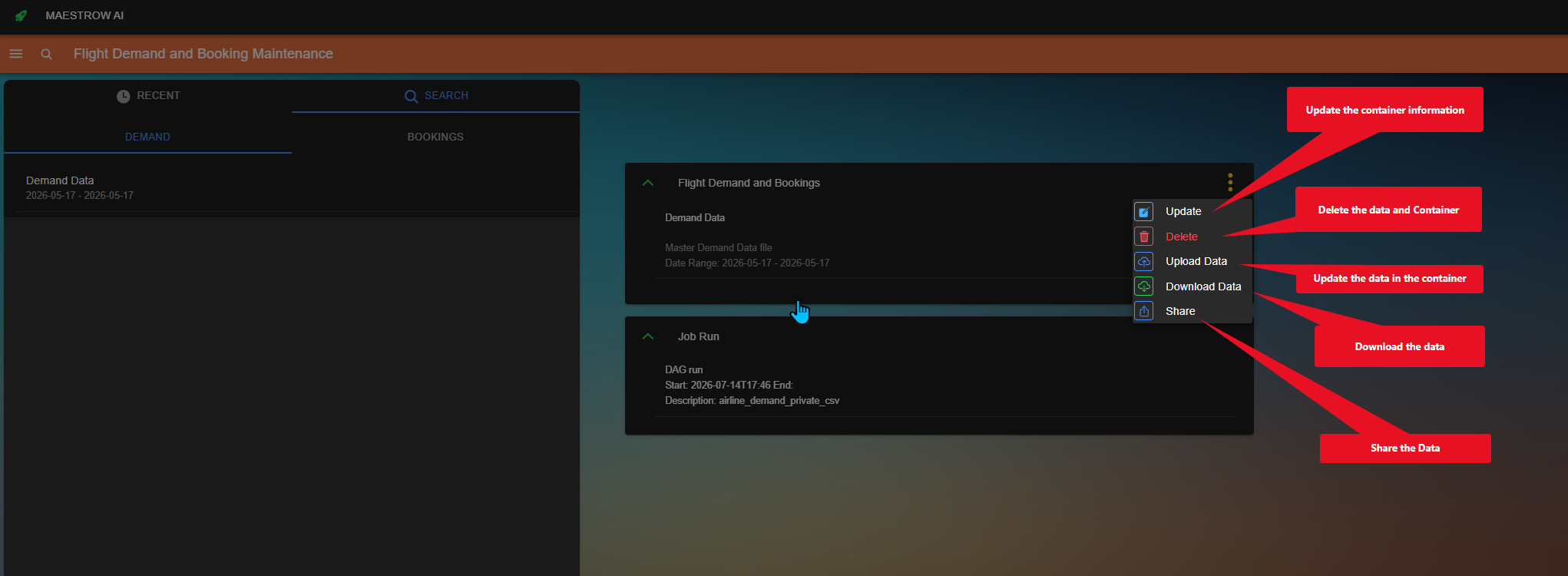
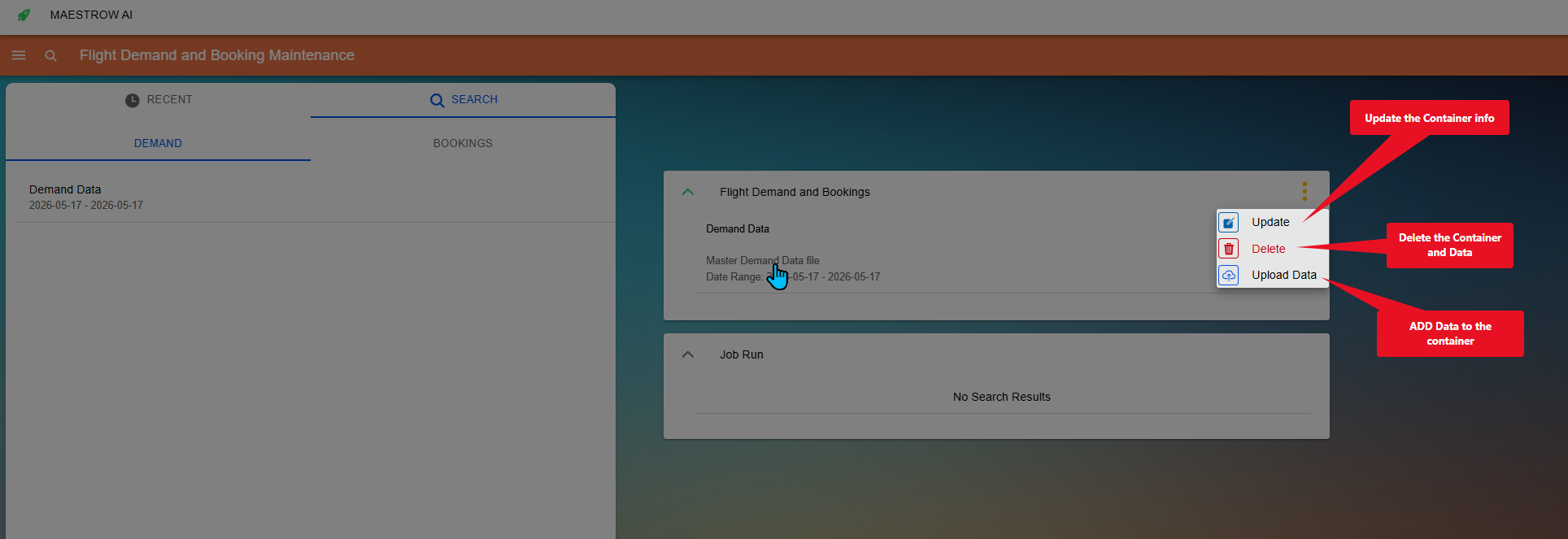
- Open the container menu and choose the upload option.
- Choose the file you want to upload.
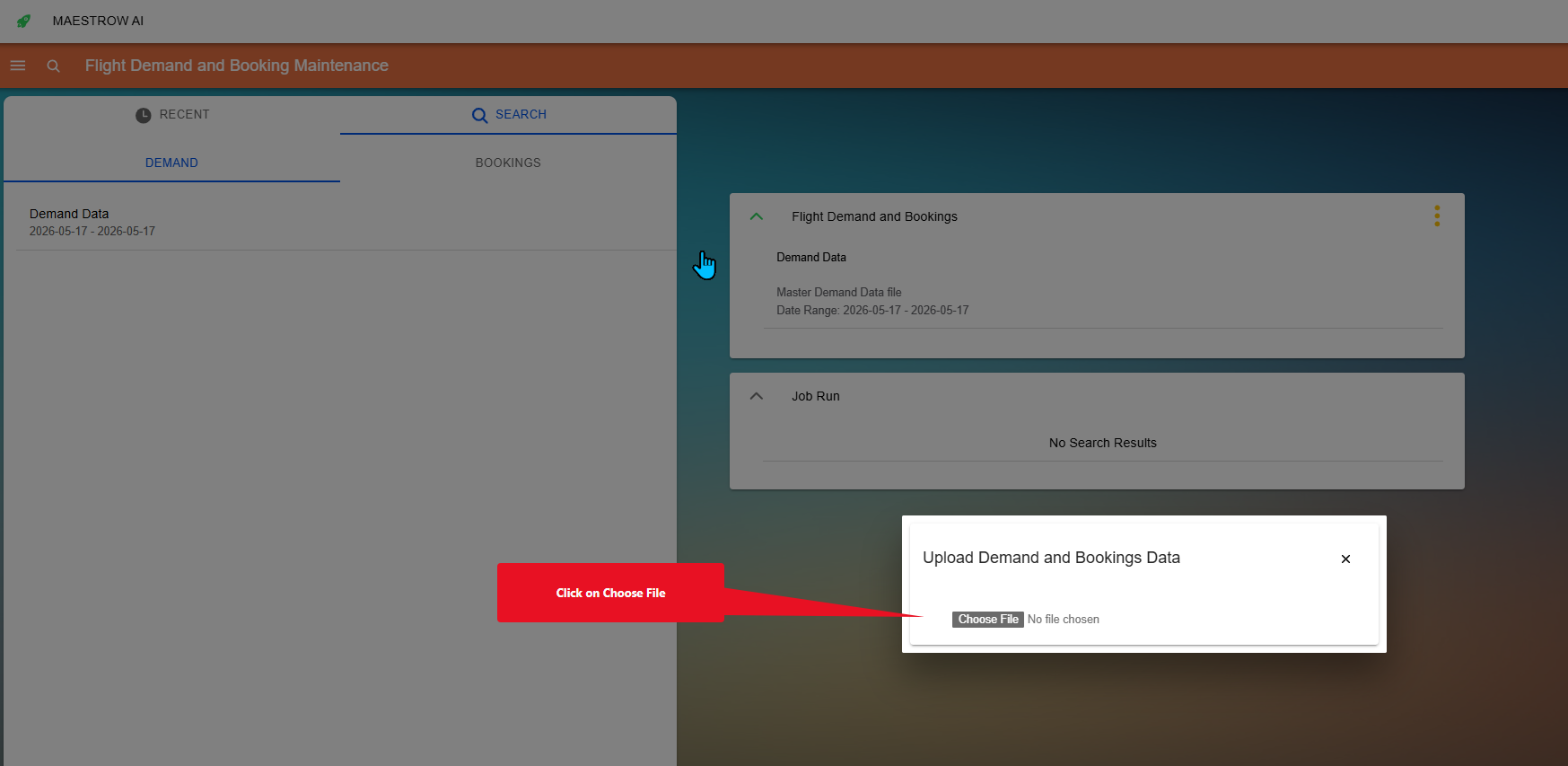
- Confirm the upload.
Tip
Uploaded data must be processed before it becomes available. If the data is not accepted, you will receive a notification. In some cases, you may need to refresh the page for the text to appear.
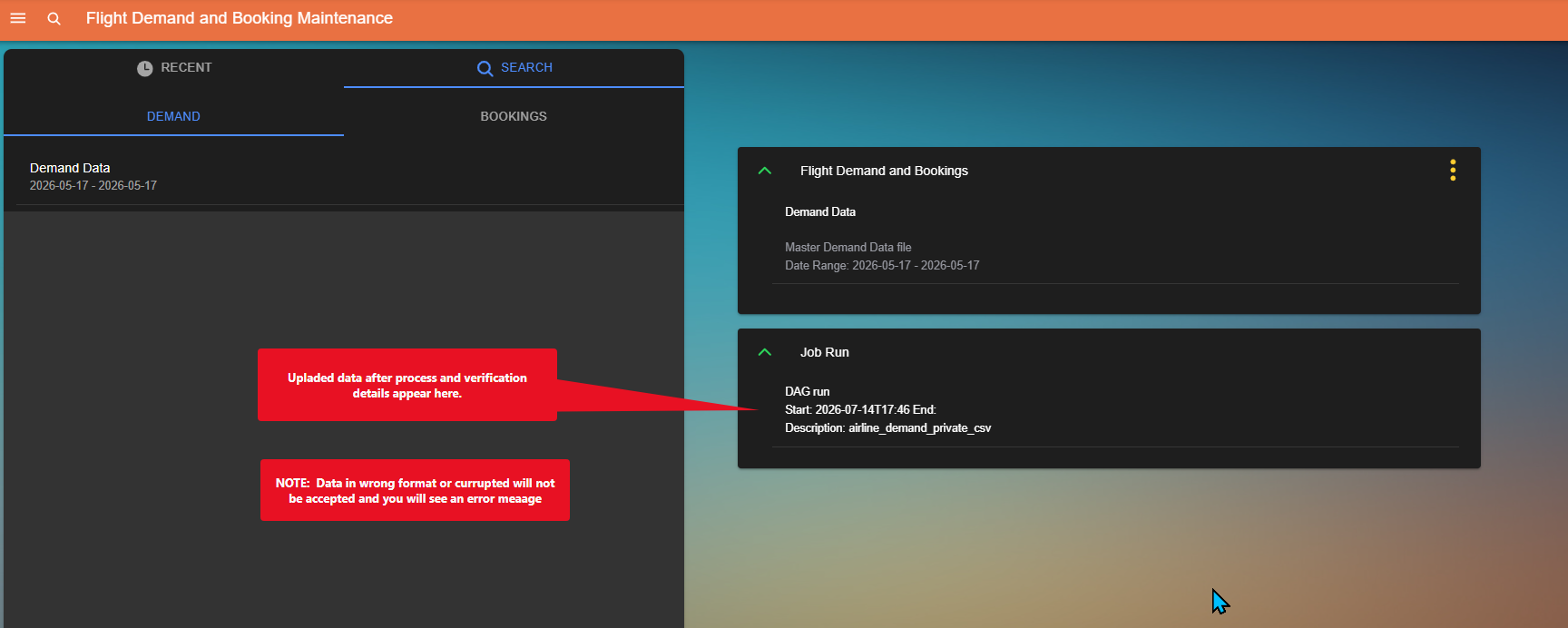
After upload
You will have new file options once the container contains data.