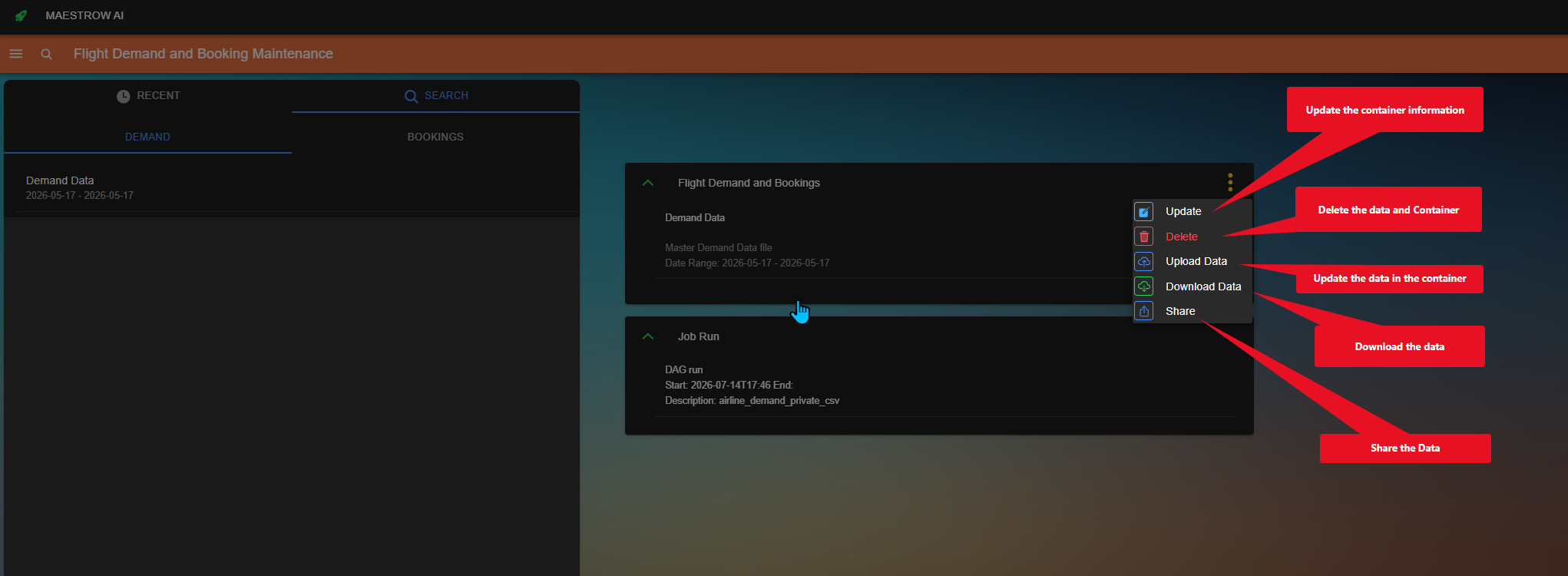
How to add data to the Demand and Booking data sets
Create a new folder (container)
Best practice
Name containers so it is easy to see which periods have been updated in the system.
Pro tip
Demand and Booking data are appended to the database. When using these data sets in a prompt, refer to them as Demand or Booking Data only—you do not need to reference a specific file.
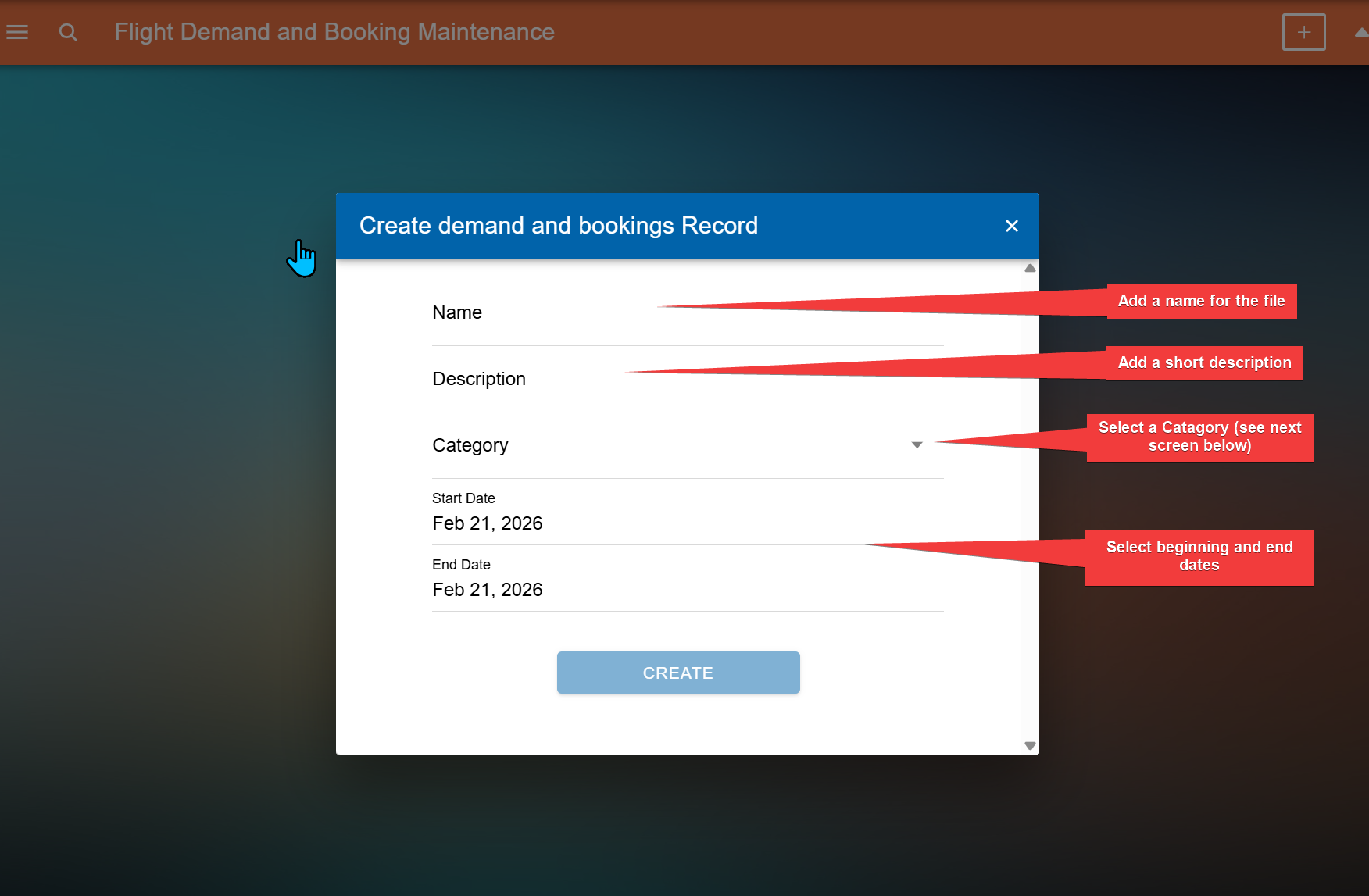
- Click the + button to add a new folder.
- Enter a name for the folder.
- Add a short description.
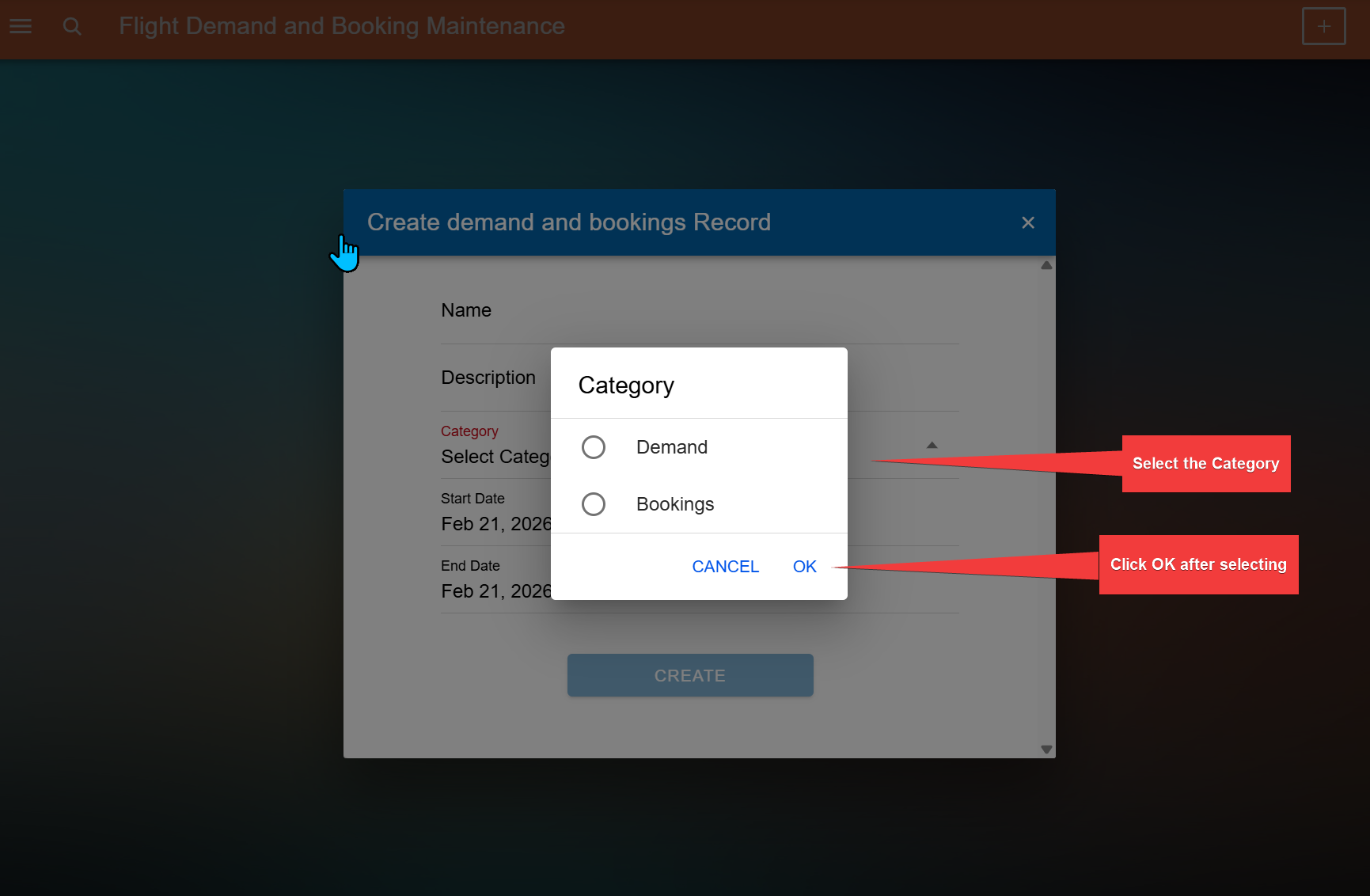
- Select a category.
- Set the start and end date.
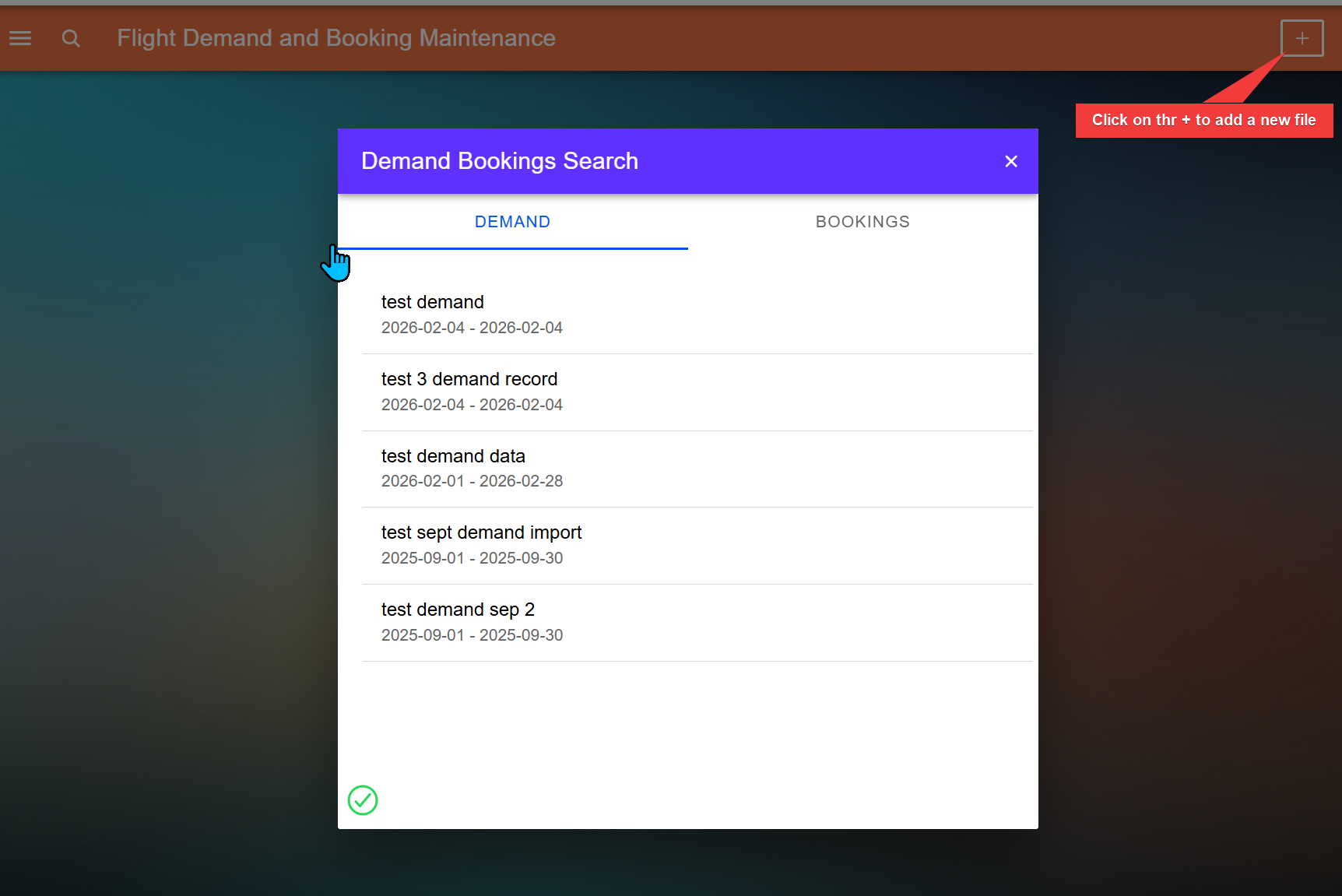
Add data
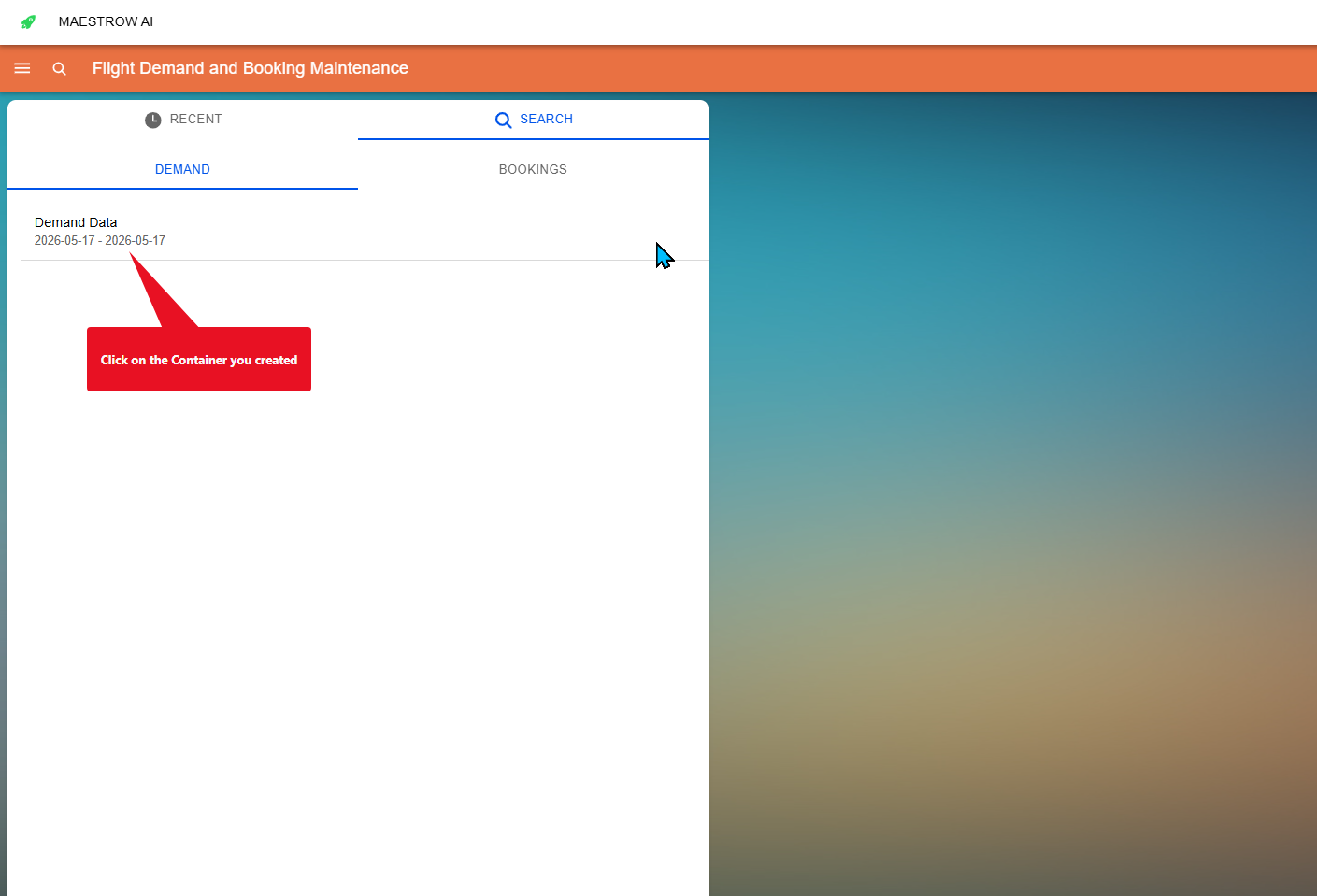
Step 1: Select the folder (container)
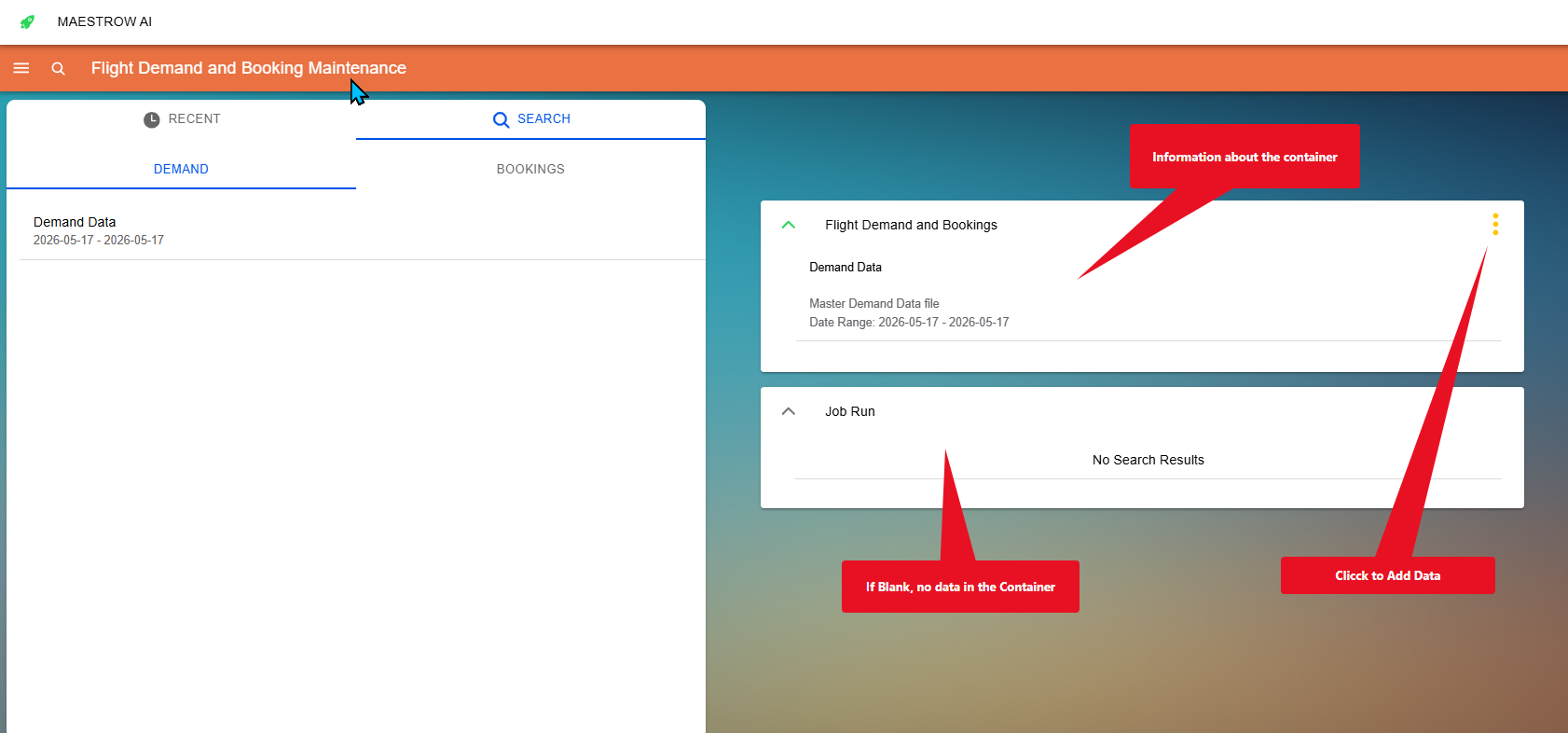
Step 2: Review the contents of the container
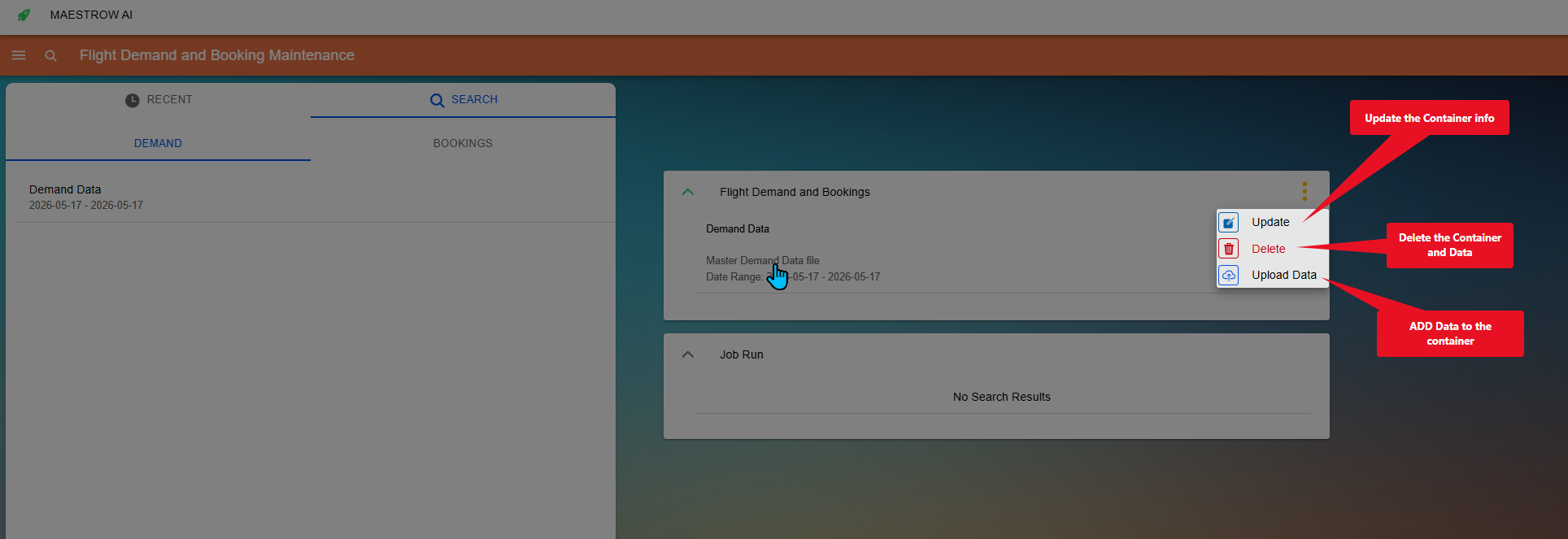
Step 3: Add data
Step 4: Choose the file you want to upload
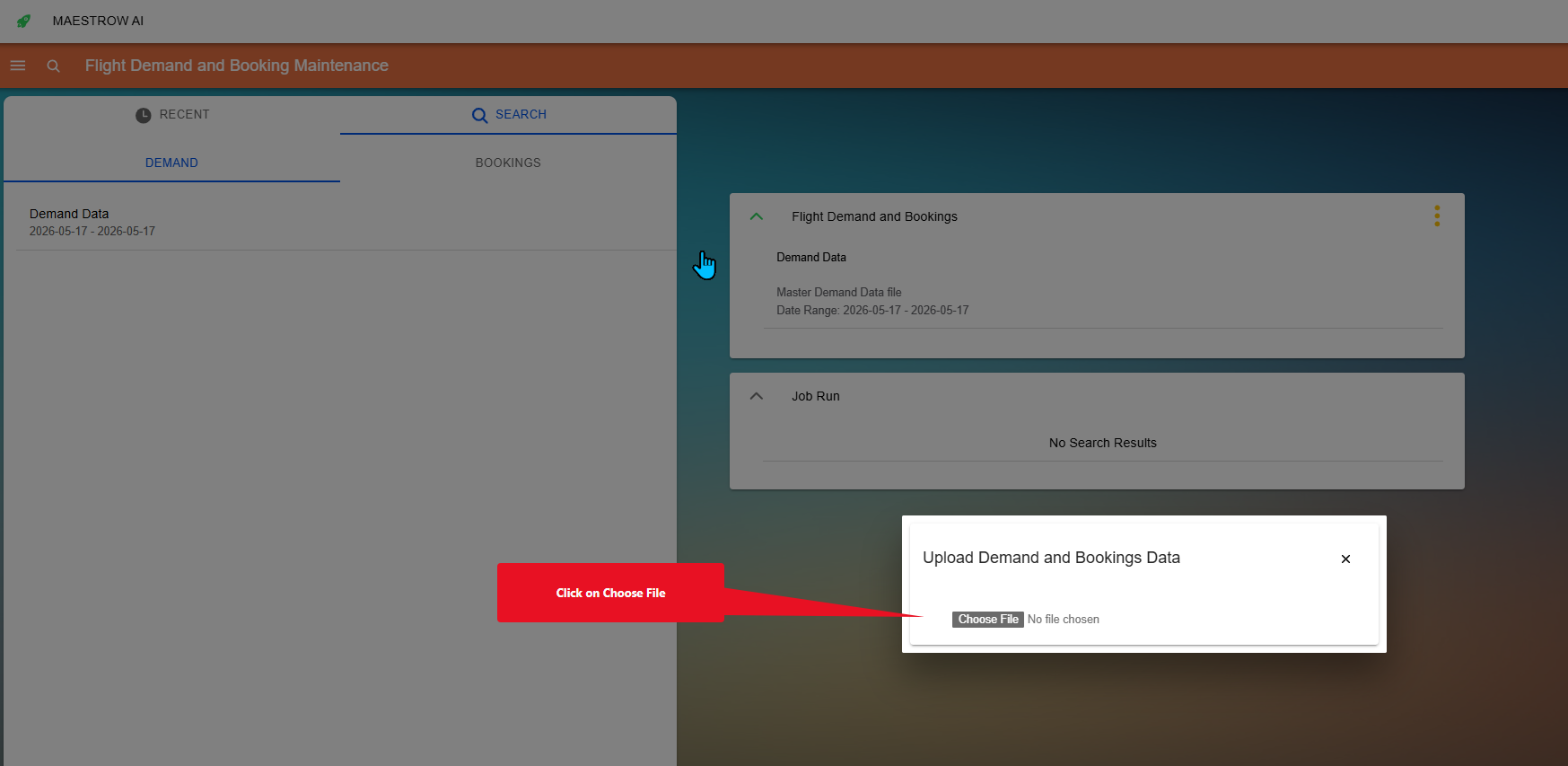
Step 5: Confirm the data upload
Tip
Uploaded data must be processed before it becomes available. If the data is not accepted, you will receive a notification. In some cases, you may need to refresh the page for the text to appear.
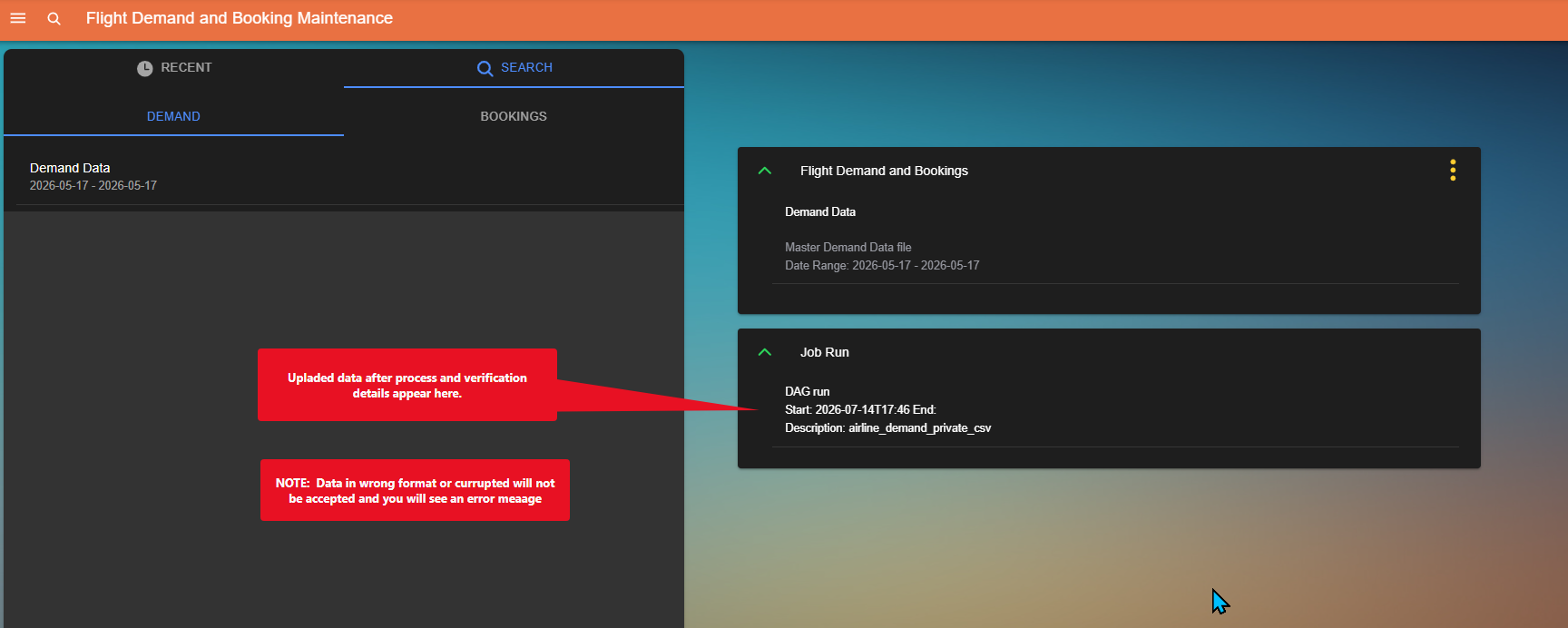
You will have new file options once the container contains data.