How to Manage Prompts
Accessing Prompt Menu
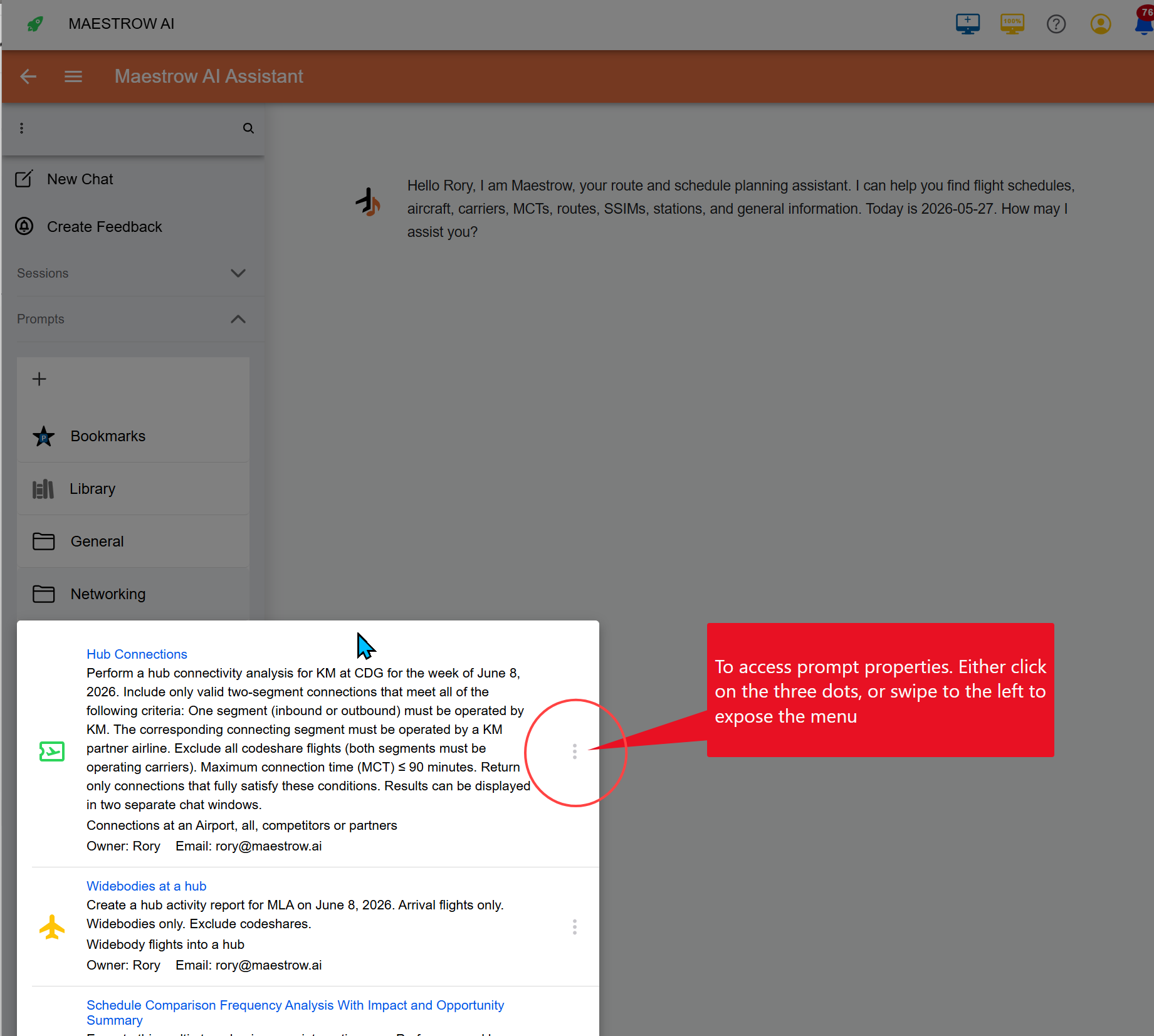
Automating a Prompt
- Open the folder containing your saved prompt.
- Swipe left on the prompt and select Automate.
- Choose a trigger:
- On sign-in
- When SSIM updates
- When MCT changes
For more on automation, see How to Automate Prompts and Use Viewers.
Moving a Prompt
- Select your prompt and swipe left.
- Tap Move.
- Choose a new folder from the dropdown and click Update.
note
If you move a prompt to a Shared Folder, it must be set to Public for others to view and use it.
Updating a Prompt
- In the prompt folder, swipe left on your prompt.
- Select Update.
- Edit the name, description, category, or visibility.
- Click Update to save your changes.
Deleting a Prompt
- In the prompt folder, swipe left on the prompt.
- Select Delete.
This action cannot be undone.
Sharing a Prompt
- Open the folder and swipe left on the prompt.
- Set the prompt to Public.
- Move it to a Public Folder.
- Click Update.
note
If you save a prompt to a folder owned by a colleague, they gain full control. You can run it, but not modify, update, or delete it. To regain control, save a copy to one of your own folders.
Why share prompts?
- Inspire others — A great prompt can spark creativity across your team.
- Encourage collaboration — Shared prompts lead to group discussions and joint projects.
- Preserve institutional knowledge — Prompts become living archives of your organization's expertise.